
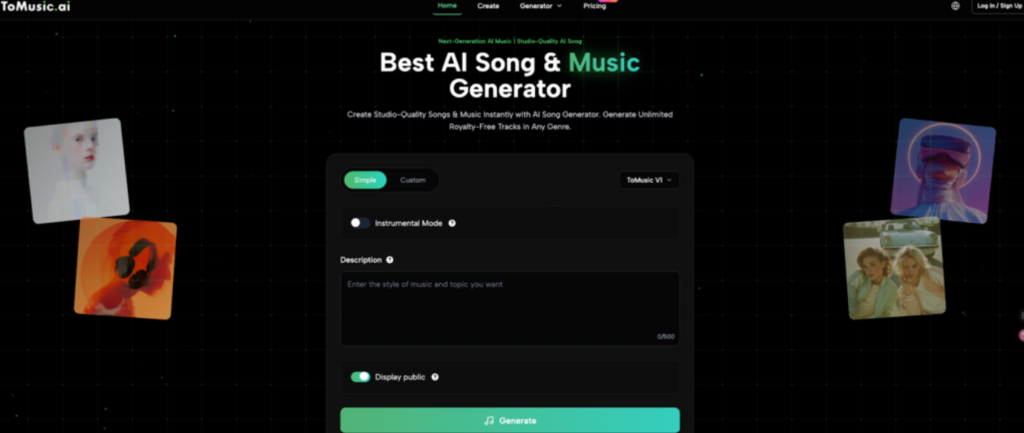
If you’ve written lyrics but don’t have time to produce a full track—melody, arrangement, and vocals included—an AI lyric-to-song workflow can help you turn your words into a complete song draft quickly. In this guide, you’ll learn how Tomusic lyric to song ai works in practice, what you can reliably do with it, and a step-by-step method you can repeat whenever you want to generate a new song from lyrics.
Functions of Tomusic Lyric to Song AI
- Lyric-to-song generation
Tomusic is built for generating complete songs from text inputs. For lyric-to-song, the core idea is simple: you provide your lyrics and describe the style and musical direction, and the system generates a song output based on that guidance. This is especially useful when you already have words and need a fast path to melody + arrangement + performance.
- Instrumental Mode for backing tracks
Sometimes you want the same workflow but without vocals—intro music, background tracks, or a beat to write on top of. Tomusic includes an Instrumental Mode toggle so you can generate music without vocal output. That makes it practical for creators who want both: songs with lyrics and clean instrumentals for videos.
- Simple vs Custom workflows
The creation interface includes Simple and Custom modes. Simple is designed for speed: you describe what you want and generate quickly. Custom is there when you want more detailed control and experimentation. For most lyric-to-song users, Simple is the fastest way to get a strong first draft, then you can refine in later runs.
- Predictable “cost per generation”
Each generation shows Required Credits up front (your screenshot shows 5 credits). That’s important because lyric-to-song usually needs a few attempts to lock in the best chorus hook and vocal feel. When the cost is visible, you can plan: run 3 versions, pick the best, and stop—without guessing.
How to Use Lyric to Song AI in 3 steps
Below is a workflow written to match the exact elements shown in the Tomusic generator page: Simple/Custom, model selector, Instrumental Mode, Description (0–500), Display public, Required Credits, and Generate.
Step 1 — Choose your mode and model
Open the generator page: lyric to song ai
At the top-left, choose:
- Simple for quick results (recommended for your first run)
- Custom if you want more detailed control later
At the top-right model dropdown, select the model you want (your UI shows ToMusic V1 as an option).
Practical tip: Start in Simple + ToMusic V1 for your first 2–3 generations so you can compare results under consistent settings.
Step 2 — write a “complete” Description
If you want a full song with vocals, keep Instrumental Mode OFF.
If you want a backing track only, toggle Instrumental Mode ON.
In the Description field (limit shown as 0/500), write your instruction in a structured way. A reliable format is:
- Genre + mood
- Tempo (BPM or “slow/medium/fast”)
- Key instruments
- Song structure (verse/chorus/bridge)
- Vocal direction (clear/soft/airy/strong) if not instrumental
- Ending (clean ending / fade-ready)
- Safety constraints (no explicit content; avoid “in the style of” prompts)
Example (copy-ready):
Pop ballad, emotional and warm, 90 BPM, piano + soft strings, verse-chorus-verse-chorus-bridge-final chorus, clear vocals, memorable chorus hook, clean ending, no explicit content, no artist imitation.
Why this works: It’s specific enough to steer melody and arrangement, but short enough to stay under 500 characters and avoid conflicting instructions.
Step 3 — Set visibility, confirm credits, and click Generate
Decide whether your output should be public:
- Turn Display public ON if you want it shown publicly
- Turn it OFF if you prefer keeping it private
Check Required Credits (your screenshot shows 5).
Click Generate to create your track.
Iteration rule (most important): Run 3 versions, but change only one thing each time (tempo OR instruments OR mood OR vocal direction). This keeps results comparable and makes it easier to pick the best output.
Common Questions About Tomusic Lyric to Song AI
Can it really turn lyrics into a “full song”?
It can take your lyrics plus musical direction and generate a complete output quickly—often best treated as a strong demo / first draft. If you want something release-ready, you’ll usually do small post steps (trimming, fading, choosing the best version). The big win is speed: you go from lyrics to listenable music without building an entire arrangement manually.
Should I use Simple or Custom?
If your goal is speed and consistency, start with Simple. Once you’ve found a direction you like (genre, tempo range, vocal tone), switch to Custom to experiment more. Many creators waste credits by using complex settings too early—Simple helps you lock the “core idea” first.
How do I get a stronger chorus hook?
Treat the chorus like a “repeatable headline.” In your Description, explicitly request:
- “memorable chorus hook”
- “repeat the hook line”
- “chorus bigger than verse” Then regenerate 2–3 times with only slight changes (for example, +6 BPM or one instrument change).
What if the vocal delivery isn’t clear?
Common fixes that work without technical audio knowledge:
- Ask for “clear vocals, simple melody”
- Reduce instrumentation: “piano + pad only”
- Lower tempo slightly (fast tempos can reduce clarity)
- Avoid too many style tags or mixed genres in the Description
Should I turn on Display public?
Only if you want your creation discoverable. If you’re writing unreleased lyrics or client work, keep it off. Treat it like a visibility/privacy toggle.
Why does lyric-to-song need multiple tries?
Because small changes in tempo, instrumentation, or vocal tone can change:
- how “singable” your lines feel,
- whether the chorus lands,
- whether the ending is clean for editing. That’s why the credit display is helpful—you can plan iterations instead of guessing.
Conclusion
Turning lyrics into a full song doesn’t have to mean a full studio setup. With Tomusic lyric to song ai, you can create a repeatable workflow: pick Simple or Custom, decide whether you want vocals or instrumental, write a clear 500-character Description, check credits, and generate—then iterate with controlled changes until the chorus and delivery feel right.
If you paste one verse + one chorus and tell me the target genre (Pop / Lo-fi / Cinematic / EDM) and vibe (sad / confident / uplifting), I can write a tight Description that fits the Tomusic UI and helps you get a strong first generation in 1–3 tries.